Quick Start Guide
This guide will help you get started with VISTA quickly.
Click to watch a demo of VISTA on YouTube
Launching VISTA
After installation, you can launch VISTA in several ways:
From the command line:
vista
As a Python module:
python -m vista
From Python code:
from vista.__main__ import main
main()
Simulating Imagery
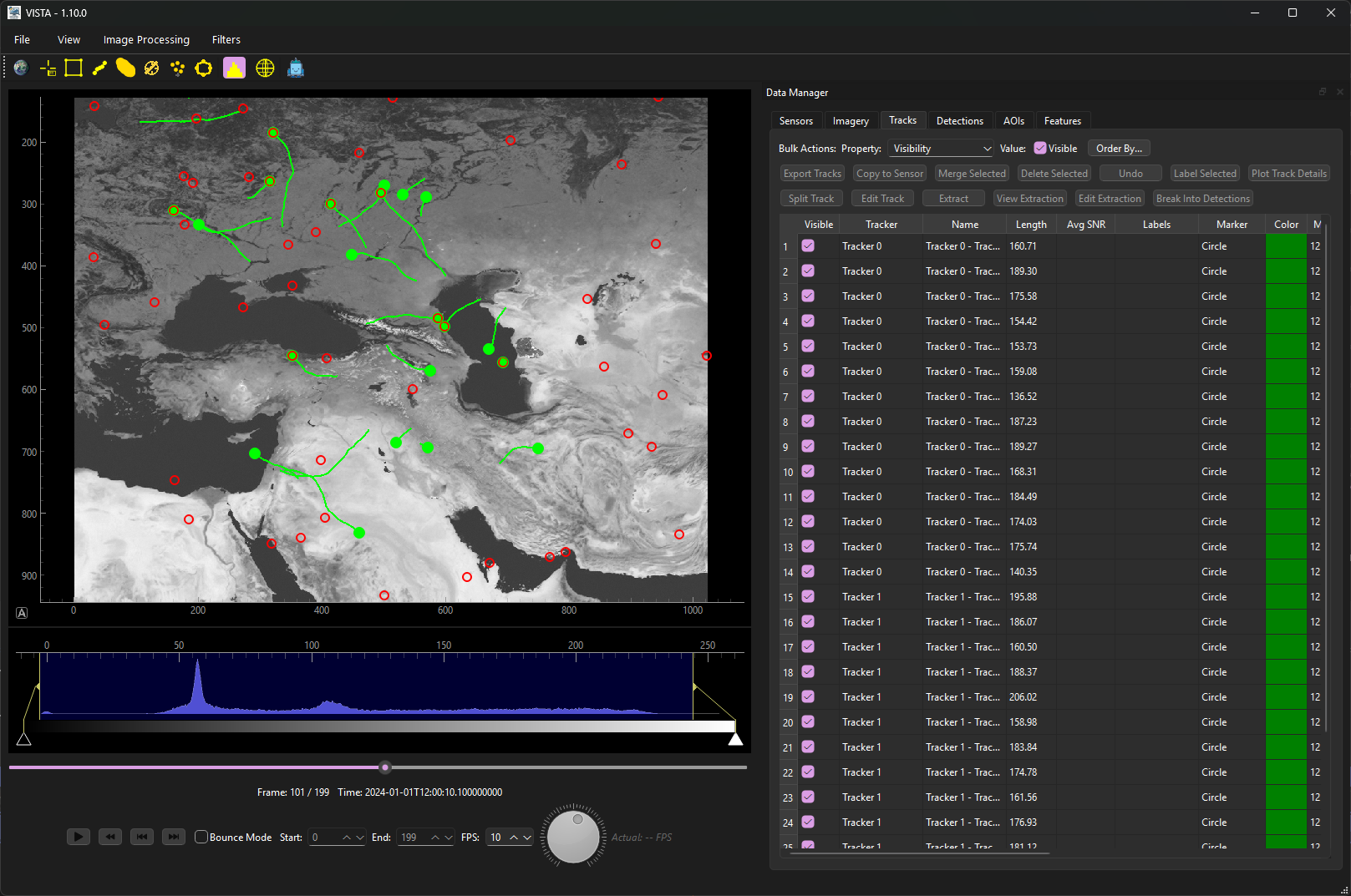
One of the easiest ways to get started with VISTA is using its built-in simulator. This helps introduce users to VISTA in addition to providing examples of ICD compliant imagery, detection, and tracks data.

Loading Imagery
VISTA supports various imagery formats. To load imagery:
File Menu: Click
File > Load Imagery (HDF5)and select your imagery fileDrag and Drop: Drag imagery files directly into the VISTA window
Programmatically: Use the VISTA API to load imagery
Supported Formats
VISTA loads imagery from HDF5 files (.h5, .hdf5). See the HDF5 format overview
for details.
Basic Workflow
A typical VISTA workflow consists of:
Load Imagery
Load your multi-frame imagery dataset into VISTA.
Apply Treatments
Apply radiometric corrections such as bias removal or non-uniformity correction.
Detect Objects
Run detection algorithms (e.g., CFAR, threshold-based) to identify objects of interest.
Track Objects
Apply tracking algorithms to create tracks from detections across frames.
Analyze Results
Review tracks, extract features, and export results for further analysis.
Using the GUI
Main Interface Components
Imagery Viewer: Central display area showing the current frame
Playback Controls: Navigate through frames and control playback
Data Panels: Manage sensors, imagery, tracks, detections, and features
Menu Bar: Access file operations, algorithms, and settings
Status Bar: Shows current frame, coordinates, and pixel values
Running Algorithms
Select
Image Processingfrom the menu barChoose an algorithm category (Background Removal, Enhancement, Detectors, Tracking, or Treatment)
Configure algorithm parameters in the dialog
Click
Runto execute the algorithmResults will appear in the appropriate data panel
Keyboard Shortcuts
Common keyboard shortcuts:
Space: Play/Pause playbackLeft/Right ArroworA/D: Previous/Next frameCTRL+Z: Undo track / detection panel actionSpacebar: Play/PauseDelete: Remove selected sensors, imagery, tracks, detectors, detection pointsDrag and Drop on Sensors / Imagery panels: Load sensor / imagery dataDrag and Drop on Tracks Panels: Load tracks dataDrag and Drop on Detections Panels: Load detections data
Next Steps
Learn more about the User Interface
Check the Imagery Module for programmatic usage